Showing posts with label Bill Ferenc. Show all posts

Wednesday, April 30, 2008

More Senior Project

Just wanted to make a quick post! A recap of last Friday? Maybe. Real quick, real quick, another senior project image!!!


This is an illustration about Tourette Syndrome. I kind of imagined the condition as someone's brain being a full house. Too many thoughts and personalities colliding and irritating each other, resulting in tics and outbursts.

On to other things...

I thought the presentations went really well! It's nice to hear everyone talk about their work, especially since half the people that presented were from the other class and it was all new to me. I think we were all in our own worlds over the last few weeks too, so it was kind of cool to see all of the illustrators gathered in one room. It was a long day though, am I right? I'm looking forward to this Friday, but it's gonna' be rough.

I am also kind of curious to know what people thought of the posters and postcards we printed. I heard both good and bad things...

-Bill
billferenc.com

Monday, April 21, 2008

Just a Test

The following image was uploaded at 72 dpi, but is 10 inches wide!!!! The image below is merely a thumbnail, click it to open a larger version.


This is another image from my senior project. A photo illustration of Vision! I made four others, obviously for the other four senses. Maybe I'll post those later.

Upload an Image (edit)


Hi! Here is a sample of my senior project!

***So, I thought for some reason that blogger will crop your image if it's larger than 6 inches. Boy, was I wrong. When you upload an image, it will post it as a thumbnail! Then, when you click on the thumbnail version in the actual post, it opens up at its original size. Cool!

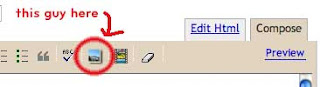
To add an image:

1.) Edit your image appropriately.
2.) Make sure you SAVE your file FOR WEB in photoshop as a .jpg at 72 dpi!
3.) When making your post, click on the little picture icon NEXT to the check spelling icon in the toolbar.


...then follow the instructions. I like to choose 'none' for the layout option, and medium for the size option (this will be the size of the thumbnail).

4.) After it's uploaded, the image will always appear at the top of the text box. You can click and drag the image to the place you want it to appear in the post.

5.) After you finish your post. Make sure to add your name in the labels section (like Molly mentioned) and click "publish post".

6.) You should be done!

...I hope I didn't confuse anyone!

***Blogger does NOT take any sort of ownership over your images. But you can include a little copyright symbol on your image somewhere if you like.....

>>>Bill - billferenc.com