
Hi! Here is a sample of my senior project!
***So, I thought for some reason that blogger will crop your image if it's larger than 6 inches. Boy, was I wrong. When you upload an image, it will post it as a thumbnail! Then, when you click on the thumbnail version in the actual post, it opens up at its original size. Cool!
To add an image:
1.) Edit your image appropriately.
2.) Make sure you SAVE your file FOR WEB in photoshop as a .jpg at 72 dpi!
3.) When making your post, click on the little picture icon NEXT to the check spelling icon in the toolbar.
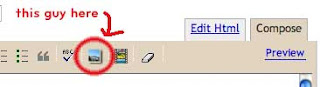
...then follow the instructions. I like to choose 'none' for the layout option, and medium for the size option (this will be the size of the thumbnail).
4.) After it's uploaded, the image will always appear at the top of the text box. You can click and drag the image to the place you want it to appear in the post.
5.) After you finish your post. Make sure to add your name in the labels section (like Molly mentioned) and click "publish post".
6.) You should be done!
...I hope I didn't confuse anyone!
***Blogger does NOT take any sort of ownership over your images. But you can include a little copyright symbol on your image somewhere if you like.....
>>>Bill - billferenc.com
>>>Bill - billferenc.com
